Month: March 2010

  • using CSV as a virtual data source

    While we already know how to make trivial shapefiles with shapelib, sometimes that’s too tedious. Very frequently I get data in Comma Separated Value (CSV) format, and reliably importing/converting it can be a pain.

    Here’s our sample CSV file, library_test.csv:

    "Easting","Northing","Library"
    625539.6,4837170.9,"Dufferin St. Clair"
    625862.0,4838241.1,"Oakwood Village"
    626251.0,4835287.2,"Bloor Gladstone"
    626671.7,4836922.6,"Davenport"
    627227.2,4840006.4,"Forest Hill"
    

    ogr has a CSV driver. In its documentation the Virtual Format driver is touched upon. This allows you to set up a data definition file, especially useful if you read the same format frequently.

    Here’s the VRT file for that CSV:

    <OGRVRTDataSource>
        <!-- note that OGRVRTLayer name must be basename of source file -->
        <OGRVRTLayer name="library_test">
            <SrcDataSource>library_test.csv</SrcDataSource>
            <GeometryType>wkbPoint</GeometryType>
            <!-- your SRS goes here; I used EPSG SRID -->
            <LayerSRS>EPSG:2958</LayerSRS>
            <GeometryField encoding="PointFromColumns" x="Easting" y="Northing"/>
       </OGRVRTLayer>
    </OGRVRTDataSource>
    

    Your CSV file will now behave like a shapefile, or indeed any other geo-format that OGR understands. QGIS is a bit picky – it doesn’t seem to always work out the path of the source file.

    To prove these are real coordinates, here’s what I did to make a Google Earth KML file:

    ogr2ogr -f KML -t_srs EPSG:4326 library_test.kml library_test.vrt -dsco NameField=Library
    

    Technically, you don’t need to specify the SRS for KML output as it only supports EPSG:4326, but I found you got trivially different results if it was omitted.

    Try this in Google Earth: library_test.kml

  • ward maps: kinda working, sorta

    Now I’ve sorted out formatting the labels and scraping the data, I should be almost ready to produce a pretty map.

    Well, almost. The DBF component of a shapefile seems somewhat resistant to adding a column, and SQLite doesn’t seem very happy with its ALTER TABLE ADD COLUMN ... syntax.

    As usual, I needed to create the database table from the shapefile. I’m not bothered about CRS, so I used -1.

    
    .read init_spatialite-2.3.sql ASCII
    
    .loadshp TCL3_ICITW Wards CP1252 -1
    
    alter table wards add column candidates integer


    I had mixed success getting data to load into this new column. So I improvised.

    !!! WARNING: EGREGIOUS MISUSE OF DATA FOLLOWS !!!

    (Sensitive readers are advised to look away)

    There’s a seeming unused numeric column SHAPE_LEN in the table. As my new candidates column was coming up with occasional nulls, I cheated:

    
    UPDATE Wards set shape_len=3 where scode_name="1"
    
    UPDATE Wards set shape_len=1 where scode_name="2"
    
    UPDATE Wards set shape_len=0 where scode_name="3"
    
    ...
    
    UPDATE Wards set shape_len=3 where scode_name="44";


    I then added SHAPE_LEN as the label, and defined a range based colour gradient for the wards in QGIS’s layer properties:

    And this is how it looks:

    Another partial success, as Professor Piehead would say.

  • closer to ward maps: scraping the data

    Toronto publishes its candidates here  http://app.toronto.ca/vote2010/findByOffice.do?officeType=2&officeName=Councillor in a kind of tabular format. All I want to do is count the number of candidates per ward, remembering that some wards have no candidates yet.

    Being lazy, I’d far rather have another program parse the HTML, so I work from the formatted output of W3M. It’s relatively easy to munge the output using Perl. From there, I hope to stick the additional data either into a new column in the shapefile, or use SpatiaLite. I’m undecided.

    My dubious Perl script:

    
    #!/usr/bin/perl -w
    # ward_candidates - mimic mez ward map
    # created by scruss on 02010/03/01
    # RCS/CVS: $Id$
    
    use strict;
    my $URL =
    'http://app.toronto.ca/vote2010/findByOffice.do?officeType=2&officeName=Councillor';
    my $stop = 1;
    
    my %wards;
    for ( 1 .. 44 ) {
     $wards{$_} = 0;    # initialise count to zero for each ward
    }
    
    open( IN, "w3m -dump \"$URL\" |" );
    while (<IN>) {
     chomp;
     s/^\s+//;
     next if (/^$/);
     $stop = 1 if (/^Withdrawn Candidate/);
     unless ( 1 == $stop ) {
     my ($ward) = /(\d+)$/;
     $wards{$ward}++;    # increment candidate for this ward
     }
     $stop = 0 if (/^City Councillor/);
    }
    close(IN);
    
    foreach ( sort { $a <=> $b } ( keys(%wards) ) ) {
     printf( "%2d\t%2d\n", $_, $wards{$_} );
    }
    
    exit;


    which outputs the following (header added for clarity):

    Ward Candidates
    ==== ==========
     1     3
     2     1
     3     0
     4     0
     5     1
     6     1
     7     7
     8     3
     9     2
    10     3
    11     2
    12     3
    13     1
    14     4
    15     3
    16     1
    17     2
    18     4
    19     6
    20     2
    21     1
    22     1
    23     1
    24     0
    25     2
    26     3
    27    12
    28     3
    29     6
    30     3
    31     3
    32     2
    33     1
    34     0
    35     5
    36     2
    37     2
    38     2
    39     1
    40     2
    41     1
    42     5
    43     3
    44     3
    
  • Labelling: harder than it looks

    I’m rather taken with Mez’s rather neat Toronto ward candidate maps. I wonder if I could reproduce them (semi-)automatically?

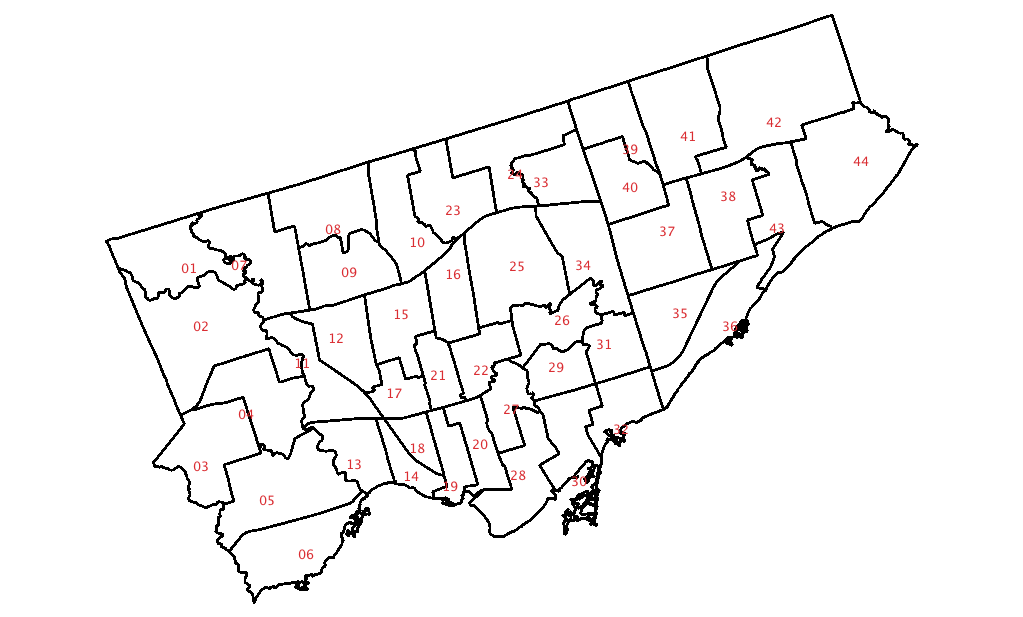
    As a start, here’s the Toronto Wards layer, rendered in QGIS with the ward number as a label:

    You’ll notice that something is quite off. It looks like QGIS uses the centre of the minimum bounding rectangle of a polygon as the label point. While this is okay for nice regular shapes, weird glaikit shapes end up with the label outside the boundary. Not good.

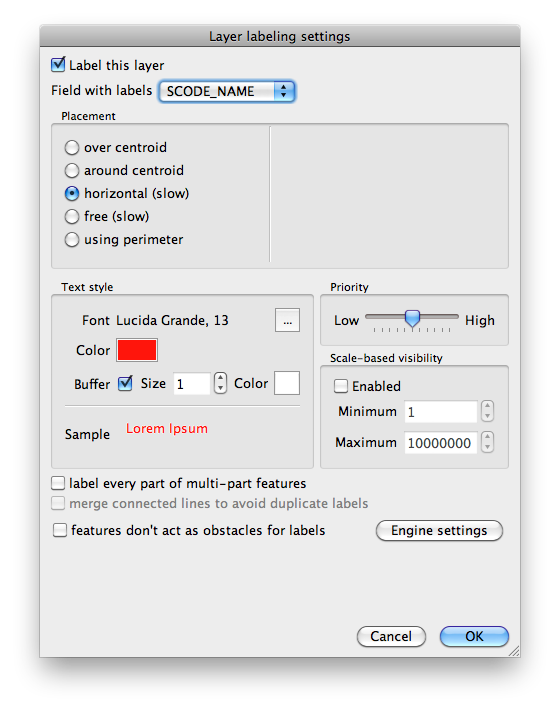
    I was about to give up on this completely, when I saw QGIS’s “Labeling” [sic] plugin. What it does is work out a variety of better visual positions for your labels. Here’s the setting I chose:

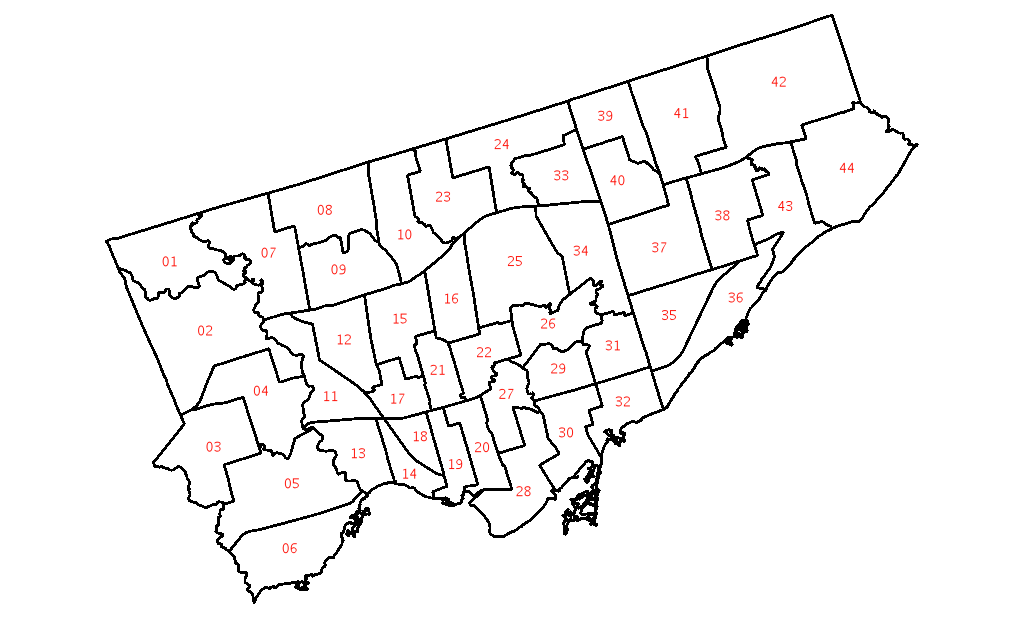
    The result is much more pleasing:

    Much better.